| HOME | PHOTOSHOP | DOWNLOAD |

WELCOME to my site Hope my post can add your knowledge and make you keep learn to reach a DREAM
Click on Image to see Tutorial

Frozen Text Parental WArning SmokedBurnedTExt Text in The Net Wooden Text 3D Colorful Text GreenField GreenRays Text OLD SpeLL Book Water Looks ELectric TexT GeL Text Grass Letter Shocking Text Mercury Text ReaListic Planet Stroke Text
To Download go to Download Page

Friday, September 5, 2008

3D TexT with Shadow use Photoshop


This time I try to make 3D text with shadow. Complicated but still easy to make it if follow the instruction on this tutorial. Just follow it step by step. Let see the tutorial, you can download pdf version here... or keep on this site and readMore...

1. Create new file with dimension 700x200 pixels and Resolution 72 pixel/inch. Dimension of the file depend on your text length.
2. Choose orange (#F7941C) for foreground color, then activate Horizontal Type tool. Define font: Arial Black and size: 100pt. Type your text, in this chase I'm using my blog name . ^_^.



3. Press CTRL + J to make duplicate of text layer. Arrange the text layer copy and place it below the original text layer. Then click eye icon of text layer to hide it.

4. On layer palette double click on text layer copy to show Blending option dialog box. Choose on Bevel and Emboss and define Style: Inner Bevel, Technique: Chisel Hard, Depth: 90 and Soften: 0.

5. Still on text layer copy, activate Move tool then with ALT key on hold press Arrow UP button on your keyboard just one time. You will get duplicate of text layer copy and named "text layer copy 2".

6. Now repeat step number 5, but this time press Right arrow.
7. Repeat step number 5 and 6, about 5-10 times. And your layer palette should look like image below.

8. Click eye icon of background layer to hide it. Then on menu choose Layer>Merge Visible or use CTRL + Shift + E. All layers visible will merge and you got layer palette like image below.

9. Click on original text layer to show it back. Activate Move tool and arrange the original text, move it to right until you get image like below.


10. Next double click layer text on layer palette to show Blending option dialog box. Choose on Stroke and define Size: 1, Position: outside, Opacity: 100, Fill type: Color and choose #603811 for color.

11. On layer palette, right click on text layer and choose Copy Layer Style then right click on text layer copy and choose Paste Layer Style.

12. Next step, activate background layer then create new layer. Your layer palette should look like image below.

13. Activate Gradient tool and choose Reflected Gradient from Option bar.

14. Define foreground color: #F7941C and background color is white #FFFFFF. Using Gradient Tool, make gradation like image below.


15. Activate Rectangular Marquee tool and make selection like image below. Then press Delete on your keyboard . Press CTRL + D to loose the selection.

16. Next create new layer and place it below the layer 1.

17. With the new layer 2 selected, activate Gradient tool but this time choose Linear gradient on option bar. And make gradation like image below.

18. Activate original text layer, define Foreground Color: #F7941C and Background color: #FFF799. Double click on original text layer and add new layer style, choose Gradient Overlay. From dialog box choose Gradient Type : foreground to background.

19. On layer palette, with CTRL button on hold click original text layer and text layer copy to select it. Then right click and choose Link layers.

20. Press CTRL + E to merge both layer. Then create duplicate of it use CTRL + J. On menu choose Edit>Transform>Flip Vertical. Then activate Move Tool and move text down like image below.


21. Next click icon Add Layer Mask on layer palette. Activate Gradient tool, make sure that Linear Gradient selected on Option Bar. Press D button then make gradation on layer mask like image below.


And my final result like image below.


Monday, September 1, 2008

SiLver TexT on Photoshop


This section almost same with technique I posted before, but this time I try to use Gradient Tool , Linear Gradient tool, Radial Gradient Tool, and few of layer style. Photoshop have many of technique so we can learn it one by one and try to combine one and another until we get new technique. Ups..am I speak too much?
OK, then lets see the tutorial …you can download it here... or keep read... more...
1. Create new file with dimension 600x300 pixel and resolution 72 pixel/inch.

2. Define foreground color is Black: #000000 and background color Dark Blue: #003371. Activate Gradient Tool and choose Foreground to background on gradient picker box and Linear Gradient on option bar. Create gradient like image below.

3. Next change background color to Light Blue: #00AEEF. Still using Gradient Tool, but this time choose Radial Gradient and checklist on Reverse on Option Bar.

4. Create new layer, then create gradient. Drag your mouse from the bottom right corner to the upper left corner of the canvas. Then change layer 1 Blending option to Screen.

5. Activate Horizontal Type tool, define font: Verdana, size: 80pt, Style: Bold Italic, Color: white #FFFFFF. Type your text and press CTRL + Enter if you done.

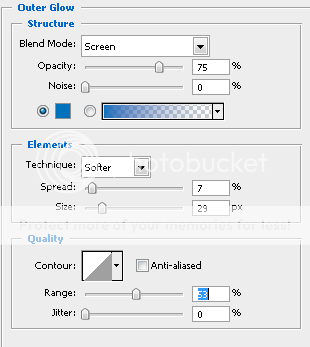
6. Still working on text layer, double click text layer on layer palette to show Blending Option dialog box. Choose Outer Glow , define Blend Mode: Screen, Opacity: 75%, color: #0071BC, Technique: Softer, Spread: 7, Size: 29 and Range: 53. Don’t press OK yet, still more to do.

7. Now choose Inner Glow, define Blend Mode: Screen, Opacity: 100%, color: #0071BC, Technique: Softer, Source: Edge, Choke: 0 and Size: 24. Don’t click OK yet, still more to do.

8. Next choose Bevel and Emboss, define Style: Inner Bevel, Technique: Smooth, Depth: 51, Direction: up, Size: 5 and Soften: 0. On Gloss contour, click on the box to show Contour Editor window, then create contour curve like image below.

9. Next choose Stroke and define size: 2 and color: Black #000000. Now you may click OK.

10. Next press D button on your keyboard to reset Photoshop color to default. Create new layer and bring it to the top of all layers. Change Blending Mode of new layer to Soft Light.

11. Last step apply Filter>Render>Clouds, repeat this step use CTRL + F until you get image you want. The values on this effect is not fix, you can try different value to get better result. And also you can save the layer style, so if you want to use it again you don’t have to make it over from the start.


Wednesday, August 27, 2008

Photoshop Tutorial: NeoN TexT


This section is like my other post before about make banner for your blog. But it have a different result. May be this can be alternate if you want to make your banner easier. Let see the tutorial…
You can download it here... or keep reading More...


1. Create new file with dimension 400x120 pixels and resolution: 100 pixel/inch. Press D button on your keyboard to reset Photoshop color to default. Fill background layer with black color use ALT+DEL.


2. Activate Horizontal Type Tool and type your text. Use Verdana as font with size 42 pt and Style: Bold Italic. After you set font, style and size then now hide background layer. Click on the eye icon of background layer to hide it. Now you may type your text and press CTRL + Enter if you done.

3. Still working on text layer, double click text layer on layer palette to show Blending option dialog box. Choose on Outer Glow and define Blend Mode: Screen, Opacity: 75%, color: #0071BC, Technique: Softer, Spread: 0, Size: 43.

4. Press CTRL + J to create duplicate of text layer. Double click on text layer copy to show Blending Option dialog box. Choose on Inner Glow, then define Blend Mode: Screen, Opacity: 75%, color:#0071BC, Technique: Softer, Source: Edge, Choke: 0 and Size: 10.

5. Click eye icon of background layer to unhide it. Now create new layer and the new layer must automatically name Layer 1. Bring the layer 1 to the top on layer palette. Change layer 1 blending mode to Color Dodge.

6. Last step, on menu choose Filter>Render>Clouds. Repeat this step until you got image that you want. My result like image below.

Monday, August 25, 2008

Make Banner with Graffiti Text use Photoshop


Waw…first time I make this text I've been confused, what title should I give to this text. But finally I decide to named it Grafitty banner. I don’t know named it right or not, if you want give it better name just post comment on this post section. This section is easier than I post before. Just used very simply technique, using move tool and free transform tool. Its very easy you must see. Interested? Keep read more...
Create new file and type your text, but separate them word by word. Each word on each layer. Use this font called BeijingWigowhat_crazy, you can download it here....

Arrange your text like following image. Use free transform to match the size until you think its look good.

Now we need to make those text look not separate. In this case I need to warp "Learn" text, especially letter "L". Activate "Learn" text layer, and use Rectangular Marquee Tool to select warp area.

After the area is selected, activate Free Transform Tool - use CTRL + T. ow… before that rasterize every text layer, right click the layer on layer palette and choose rasterize type. Resize the selected area and you should get like the following image.

Press Enter if you done, then loose the selection area press CTRL + D. Add something for the background to make it more interesting, follow your imagination. My result is like the following image.

Want to link me with this banner? Copy the code below and put it on your site ^_^


Sunday, August 24, 2008

Glass Text [Photoshop Tutorial]


In this section I learned about the function of Noise filter, Blur filter, Auto Levels, Lighting effect filter, zigzag filter and many more. Lets see the tutorial, you can download it here… or keep read More...
1. Create new file with dimension 500x400 pixel. On menu choose Filter>Noise>Add Noise, define amount: 100 then click OK.

2. Next on menu choose Filter>Blur>Gaussian Blur, define Radius: 3 and click OK.

3. Apply Auto level, to do it press Shift+CTRL+L. The image will look more Contrast.

4. Next press CTRL+U to show Hue/Saturation dialog box. Check on Colorize, then define Hue: 196, Saturation: 25 and Lightness: 0.

5. Now on menu choose Filter>Distort>Ripple. On Ripple dialog box, define Amount: 100 and size: medium.

6. Again on menu choose Filter>Distort>Zigzag, define Amount: 10, Ridges: 5 and Style: Pond Ripples.

7. Next, on menu choose Filter>Render>Lighting Effects. Arrange the setting of Lighting Effects like image below.

8. Activate Horizontal Type Tool and type your text. In this case I use Font: Century Gothic and Style: Bold. Don’t forget to use color: white for your text. Press CTRL+Enter if you done, then use Move Tool to arrange your text to the middle of canvas.

9. Double click on text layer to show Blending option dialog box. Choose Drop Shadow, uncheck on Use Global Light and define Angle: -5, Distance: 6, Spread: 0 and Size: 10. Don’t press OK yet, still more to do.

10. Now choose Inner Glow, define Blend mode: Screen, color: #FFFFFF, Technique: Softer, Source: Edge, Choke: 0, Size: 27, Contour: Sawtooth and Range : 53. Don’t press OK yet, still more to do.

11. Now choose Bevel and Emboss, define Style: Inner Bevel, Technique: Smooth, Depth: 500, Direction: Up, Size: 4, Soften: 3, Angle: 120, Altitude: 30 and Contour: Ring. Leave other on default, then press OK.

12. On layer palette, reduce layer text Fill to 0 %.

13. Now your Glass text effect is done.


Friday, August 22, 2008

Photoshop Tutorial Make YouR own Blog Banner

My new Banner not release yet

Hi..
Today I make a new banner for my blog and I made it use my favorite program Photoshop CS.
I post this because I look to another blog and there many of blogs got no banner for exchange. So think I can help if I post this. Its not difficult just in 3 steps. Lets try it !!


Let's begin Step 1:
Create new image with size that usually use for banner exchange use 300x 60px or use bigger size and you can resize it later. Fill the canvas with black and type your blog title or text that you want.

Still want to continue?? OK,keep readMore...
Step 2:
Double click on you text layer to add a new layer style. For the simplest way I use outer glow, so click outer glow to show the option and set color that you want , but better if you choose something bright. And set opacity to 100.

Next duplicate your text layer use CTRL+J, then double click on it to show blending option. Choose on outer glow and reduce the opacity to 50.

You will got a something like the following image.

Step 3:
Done with the outer glow setting, now create new layer. Activate Rectangular Marquee Tool and create selection area like image below. Then fill the selection area with White, use Edit>Fill>Color and choose white.


Done with that now press CTRL+D to loose the selection area. On layer palette, change layer 1 Blending mode to Difference. Done!! Your banner is ready for exchange with another blogger. Very easy isn't it??


Create Flooding Text on my site or yours using HTML

Do you want to know how to make this text?


Im just new on HTML so i just post what I learn today. And today I learn how to make flooding text. First time I read this tutorial I think its complicated with the symbol and the comand. But I don't want to give up and I try with something that I think easiest.Like we all know the easiest to learn something is with action.
The flooding text above using syntax like below.....

<marquee behavior="scroll" bgcolor="white" width= "400" height="20"> Do you want to know how to make this text? </marquee>

Marquee is command in HTML for flooding text in HTML page. Syntax is <marquee [properties]>….text/item…</marquee>.


The table below is properties of marquee and its values. So if you want to learn marquee command just try the properties and value show on below.

Properties

Value

Behavior

Techniques from marquee to run the text, value are slide, scroll, and alternate.

Direction

Up, down, right, left.

Height

Value in pixel or percent (%).

Width

Value in pixel or percent (%).

Continously

Default is always repeat the technique but if you want to define how many times text scroll or slide just input the number you want.

Bgcolor

Color of marquee background, value is color or hex number.

Style

Ability to define font, paragraph, border, numbering and position.


Here is another example....

Using direction=down and different size


The command I use for this like below...

<marquee behavior="scroll" bgcolor="white" width= "300" height="150" direction="down"> Using direction=down and different size </marquee>


Edited on 22 August 08 for my blogger friends ^_^ Arjaeuse
Here is another example again.. but this time useful for yours blog link...

this Link to my blog


next type yours blog links


The command I use for that like below....

<marquee onmouseover="this.stop()" direction="up" width="95%" scrollamount="3" onmouseout="this.start()" height="300" align="center"><a href="http://easyway2learn.blogspot.com">this Link to my blog</a></marquee>


This section edited on 24 August 08 request by my blogger friend Miss Anik...
Now we try to use an image ....

The command is like below....

<marquee behavior="scroll" direction="left" width= "400" height="200"> <img src="my image LINK code"> </marquee>
Interesting isn't it?